Keep Non-Latin Song Tags Readable in MP3 Players
At a glance
Maintain readable non-Latin song tags by setting Mp3tag to use Unicode ID3v2 encoding—ID3v2.4 UTF‑8 or ID3v2.3 UTF‑16, as your players support. Always test changes on a small track set across your devices before mass editing. Adjust tag types only after confirming proper display. This ensures your library remains accurate and compatible with all target players.
In this guide
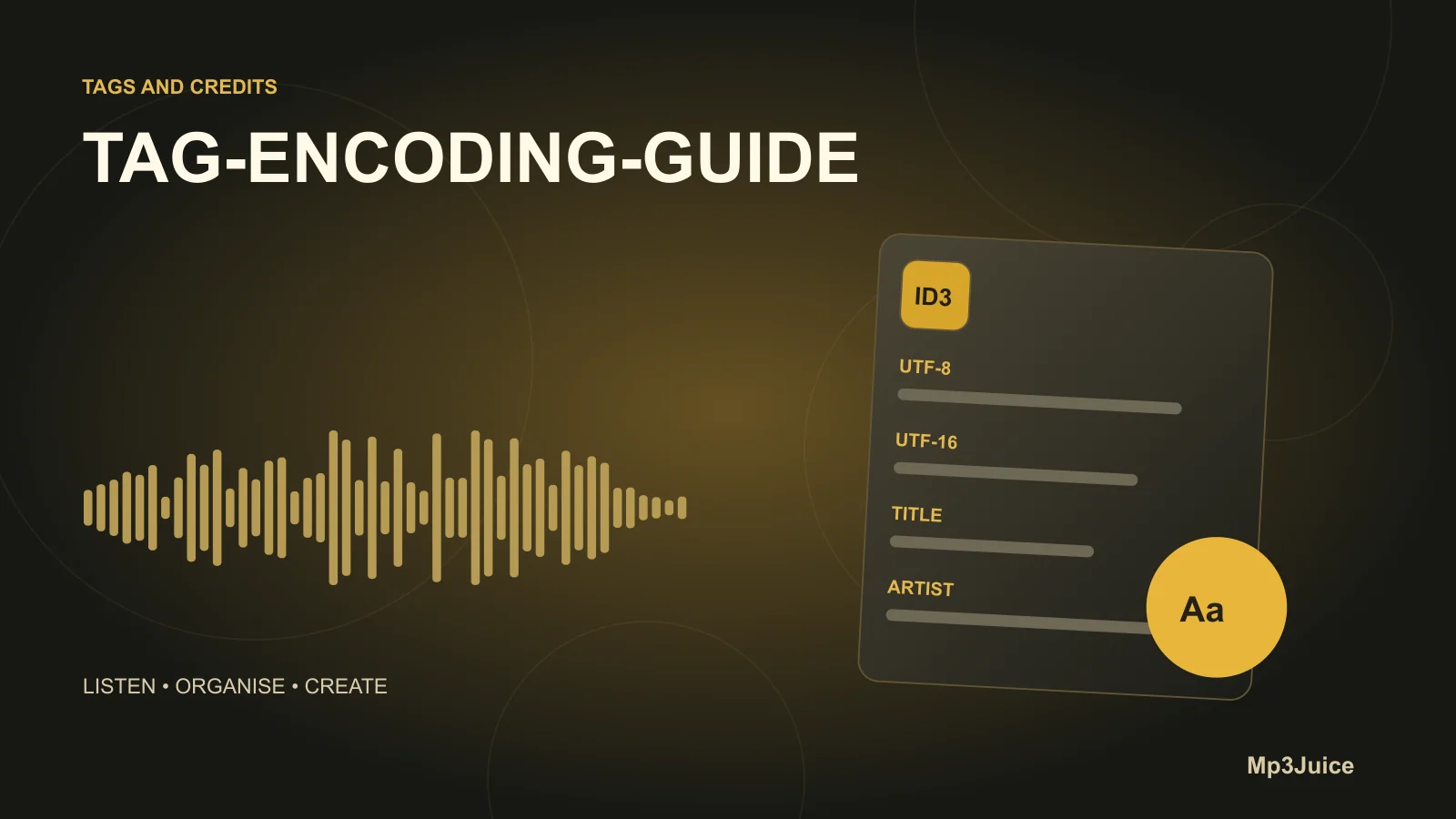
Ensuring non-Latin song tags display properly across MP3 players requires careful management of metadata encoding. Mp3tag, a flexible tag editor, allows you to tailor ID3 tag encoding so artist, title, and album names remain readable on your players. The key decision point is selecting the appropriate Unicode encoding option—typically, ID3v2.4 with UTF-8 or ID3v2.3 with UTF-16—and then confirming that your devices and apps support your choice before modifying your entire library.
Why encoding matters for non-latin text
Song metadata such as title, artist, and album must be stored as text bytes within the MP3 file. Different devices decode these bytes based on expected encoding standards. If a player only recognizes Latin-1 encoding, non-Latin scripts—such as Cyrillic, Arabic, or Chinese—may appear as unreadable symbols. Using Unicode-compliant ID3v2 tags (either UTF‑8 or UTF‑16) ensures broad script coverage, but the player must both support the tag standard and have a font with the necessary glyphs. The tag encoding you choose thus has a direct impact on tag display.
Mp3tag options overview
Mp3tag manages multiple tag versions for reading and writing:
- Reading tags: Mp3tag reads tags in the order: APE, ID3v2, then ID3v1, with only one tag displayed at a time. The reading tag type is shown in the Tag column.
- Writing tags: Mp3tag can write ID3v1, APEv2, or ID3v2 tags to each file. Available encoding options for ID3v2 tags include:
- ID3v2.4 UTF‑8: Full Unicode support using UTF‑8. Recommended when supported by your devices.
- ID3v2.3 UTF‑16: Unicode using UTF‑16, suitable for broader device compatibility.
- ID3v2.3 ISO‑8859‑1: Latin-1 only; non-Latin characters cannot be stored reliably.
- ID3v2 only if ID3v1 too small: Writes an ID3v2 tag only when needed for data longer than ID3v1 can hold.
- Removing tags: You can choose to remove any combination of ID3v1, ID3v2, or APE tags per file.
Decide which ID3 version to write
- Check device support first: Review your playback device or software’s documentation to see which ID3 versions and encodings it supports. ID3v2.4 UTF‑8 provides highest flexibility, but many older devices only support ID3v2.3 UTF‑16. If only ID3v1 or ISO‑8859‑1 is supported, non-Latin scripts will not be preserved.
- Balance compatibility: For modern computers and apps, ID3v2.4 UTF‑8 is increasingly standard. For mixed environments, ID3v2.3 UTF‑16 is typically the safest Unicode option. Only use ISO‑8859‑1 if restricted to Western Latin scripts.
- Interoperability considerations: If your music will be used across multiple device generations, favor the older standard (ID3v2.3 UTF‑16) for reliability unless you confirm universal ID3v2.4 support.
Preserve original names and test safely
Before updating your full music library, protect your source metadata and filenames. Instead of mass editing, create a test set:
- Copy 5–10 files representing all scripts you care about (such as Chinese, Cyrillic, Arabic).
- Open them in Mp3tag, noting which tag type is currently active for each.
- Adjust only the Mp3tag write-encoding option you want to try (e.g., switch to ID3v2.4 UTF‑8).
- Save tags to these copies. Avoid enabling bulk tag removal until validation is complete.
- Transfer test files to your target player or app for inspection.
This minimizes risk to originals and ensures you only proceed when confident in compatibility.
Verify rendering on the player and fallbacks
Evaluate the following on each player or app:
- Are all characters in every script visible and correct in both list and detail views?
- If you see question marks or blank fields, try the alternative Unicode ID3v2 option (switch between UTF‑8 and UTF‑16).
- If the issue persists after both encoding attempts, the device likely lacks a compatible font or tag parser for that script. In this case, changing encoding will not improve display.
Practical workflow with Mp3tag
- In Mp3tag, confirm the tag format displayed for each test file (see the Tag column).
- Open Options > Tags > Mpeg and select your write and read tag settings. Enable writing ID3v2, and choose either ID3v2.4 UTF‑8 or ID3v2.3 UTF‑16 to match device needs.
- Write tags to your test files and check playback devices for proper rendering before making batch changes.
- Once verified, confidently apply the chosen write settings to your larger collection. If needed, use Mp3tag’s removal options to clear older or conflicting tag versions after ensuring current tags display as intended everywhere.
Example: choosing an encoding
Example: Suppose your library contains both Japanese and Russian tracks, and you use a modern smartphone app and an older car stereo. Start by duplicating several representative files. Using Mp3tag, try writing ID3v2.4 UTF‑8 and check both devices—the phone displays all characters but the car stereo shows unreadable text. You then test ID3v2.3 UTF‑16; this time, both phone and car correctly render each script. The optimal choice is therefore ID3v2.3 UTF‑16 for maximum equipment compatibility. Keep both ID3v1 and APE tag reading enabled in Mp3tag while converting, to allow easy comparison and restore if needed.
Next action
Prepare a 5–10 file test set with the relevant scripts, open Mp3tag's Mpeg tag write settings, and choose your planned encoding. Save tags to the test copies and validate display on every player. Once satisfied, repeat the process for your entire library. For advanced tag management, see Edit Extended Tags Without Losing Song Credits and Use Artist Sort Tags Without Renaming Artists.