Use Artist Sort Tags Without Renaming Artists
At a glance
Maintain readable artist names while sorting music files by surname or custom order using artist sort tags. Populate the correct sort field—such as TSOP, ARTISTSORT, or soar—without renaming the artist display tag. Confirm your player supports sort tags before batch editing your library. This approach ensures display clarity and customized organization across supported music apps.
In this guide
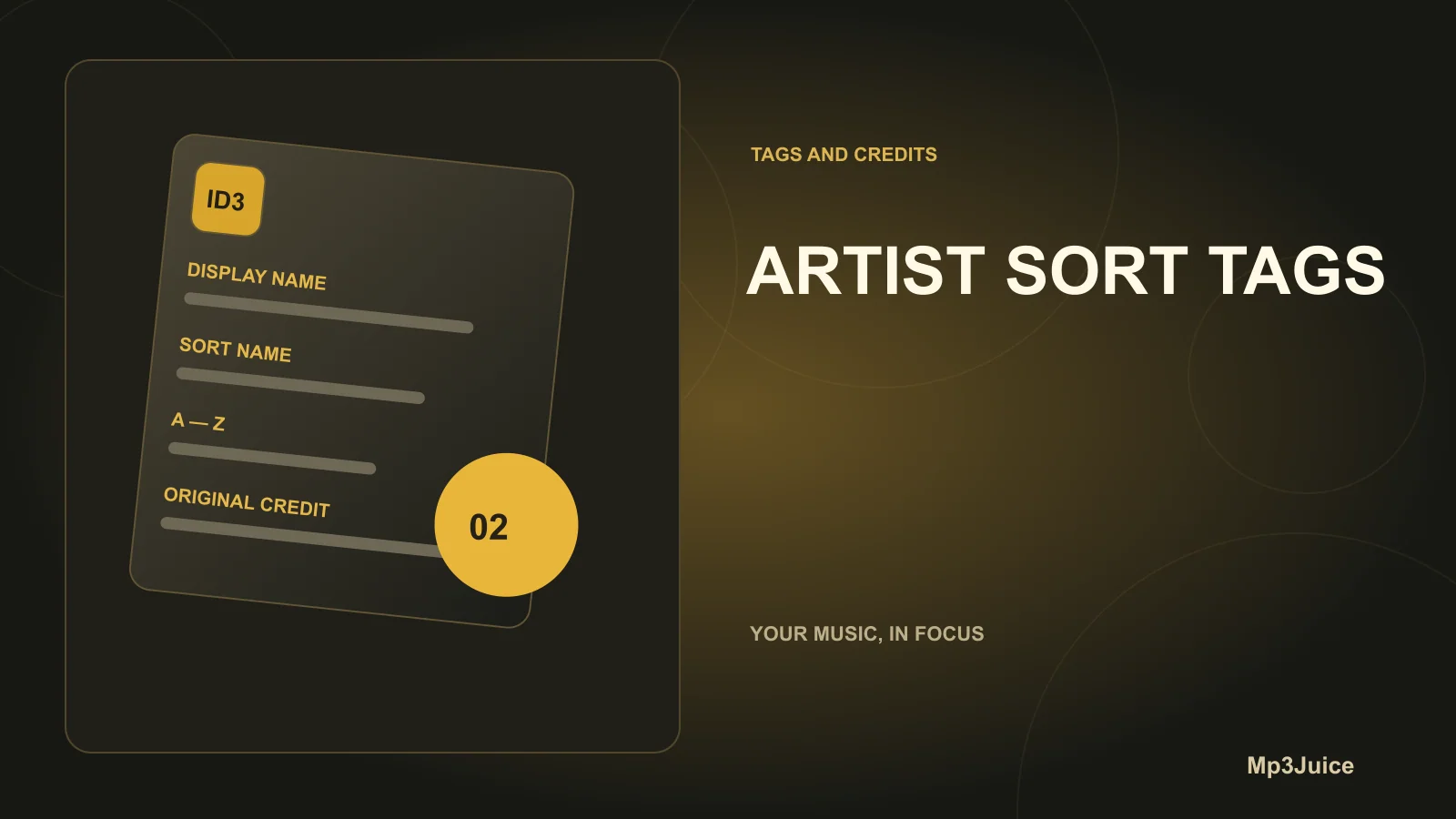
Controlling how your music files are sorted while preserving the displayed spelling of artist names is possible by using dedicated artist sort tags rather than altering the main artist field. Modern tagging standards separate visible artist tags from sort-order tags, allowing more refined control over how music collections appear and are ordered in compatible music library applications.
What are the relevant tags
Audio file tag formats provide distinct fields for the displayed artist and the sorted artist name. The key difference centers on which tag a player references when sorting versus displaying artists in its interface. The MusicBrainz Picard tag mapping defines standard mappings for these fields. For example:
- ID3v2 (MP3):
TPE1forartist,TSOPforartistsort - Vorbis (FLAC/Ogg):
ARTISTfor display,ARTISTSORTfor sorting - MP4/M4A (iTunes):
©ARTfor display,soarfor sorting
Populating the appropriate sort field allows supporting music players to sort entries as desired while displaying the artist name exactly as written in the artist field. For example, sorting "The Beatles" as "Beatles, The" in the library view but always displaying "The Beatles" on screen. This is especially useful for artists with common articles or classical composers formatted as initials and surnames.
Decide if your player supports sort tags
- Examine your music player’s settings or preferences for options named "sort name," "sort order," or similar. Players that use dedicated sort fields typically document this behavior and may offer manual toggles to control whether the sort tag or the plain artist tag determines sort order.
- Open a file in a tag inspection tool or advanced editor capable of exposing raw tag frames or keys. If tags like
TSOP,ARTISTSORT, orsoarappear, then your files carry the relevant sort metadata. - If you find the documentation lacking, conduct a simple experiment: change only the sort tag (not the artist) on a test file, reload the music library, and observe how the player sorts that entry. This quick check avoids extensive edits before confirming compatibility.
How to write sort tags
To implement custom sorting without altering the display name, identify and populate the appropriate sort field as mapped to the file’s tagging scheme:
- For MP3 files (ID3v2), add or edit the
TSOPframe (corresponding withartistsortinternally). - For FLAC, Ogg, or other Vorbis-based files, add or edit the
ARTISTSORTVorbis comment key. - For MP4 and M4A files, add or edit the
soaratom.
Software such as MusicBrainz Picard, Foobar2000, and Mp3tag provide user interfaces for editing these fields. In Picard, the field is called "artistsort" and maps internally to the correct tag for each format on save. If editing manually, ensure your tool targets the format-correct key, referencing the mappings shown above.
Step-by-step workflow
- Copy a small selection of tracks to a test folder. This ensures your original collection remains unchanged while testing sort-field behavior.
- Using your tag editor, confirm that the
artisttag contains the artist name exactly as you want it displayed to the listener. - Edit the sort field — for example, write
ARTISTSORT=Beatles, TheorTSOP=Beatles, Thedepending on the file type. Choose a sort string that reflects how you want lists ordered (usually "LastName, FirstName" and omitting leading articles as desired). - Save your changes and refresh your music player’s library database or list, using its built-in rescan feature if necessary.
- Review how the player displays and orders your test tracks. The display name should come from
artist, while sort order should follow your new sort tag. - After confirming proper behavior, proceed to batch-tag the wider library in manageable sections, double-checking results along the way.
Example: realistic scenario
Suppose you curate a classical collection where names appear as artist=J. S. Bach or artist=John Smith. You wish to sort composers by surname but keep their names formatted in full on display. Take a set of sample tracks, then:
- Set
ARTISTSORT=Bach, J. S.on tracks credited to Bach. - Set
ARTISTSORT=Smith, Johnfor performer John Smith. - For MP3s, these correspond to the
TSOPframe; for MP4 tosoar.
Refresh the player's database and inspect grouping. Listings now appear under "B" for Bach and "S" for Smith, while the displayed names remain unchanged. Once verified, expand these edits to the rest of your files.
Verify and troubleshoot
- If the player does not sort as expected, use a tag inspector to confirm that the sort tag (such as
TSOP,ARTISTSORT, orsoar) is present and populated. - Ensure that you have chosen the field that matches both the file type and the player’s tag parsing scheme. Some taggers may use alternate field names or save data only in proprietary extensions.
- Check for player-specific sorting settings, such as "use sort fields where available," that enable the use of the dedicated sort field in sorting behavior.
Next action
Create and adjust a sample file with the appropriate sort field for your format. Load it into your music player and verify both sorting and display appearance. If successful, map out a staged batch update. If not, confirm the file’s tags with a raw tag viewer and examine the player's documentation for sort-field support. For further reading on related topics, see Album Artist Tags for Compilation Albums and How to Edit Song Titles in Mp3tag.