Adjust the VLC Equalizer for Local Music
At a glance
Use VLC’s 10-band equalizer to tailor your local music playback on Windows, customizing bass, treble, and midrange for headphones or speakers. All changes affect only live listening—not your files—and are easily reversible. Subtle EQ tweaks can improve sound quality, while built-in tools let you compare effects instantly. Explore more music features for a personalized experience.
In this guide
Why adjust the VLC equalizer?
Customizing your listening experience in VLC Media Player is simple and effective with the built-in 10-band equalizer. The equalizer enhances live playback clarity, tailoring the sound to your current speakers, headphones, or acoustic environment, without altering your original music files. Unlike audio editing software that applies permanent changes, VLC’s EQ provides a safe, non-destructive way to adjust tonal balance every time you listen. These flexible settings make it easy to boost bass, refine treble, or adapt sound output to different listening situations.
How the 10-band EQ works in VLC3
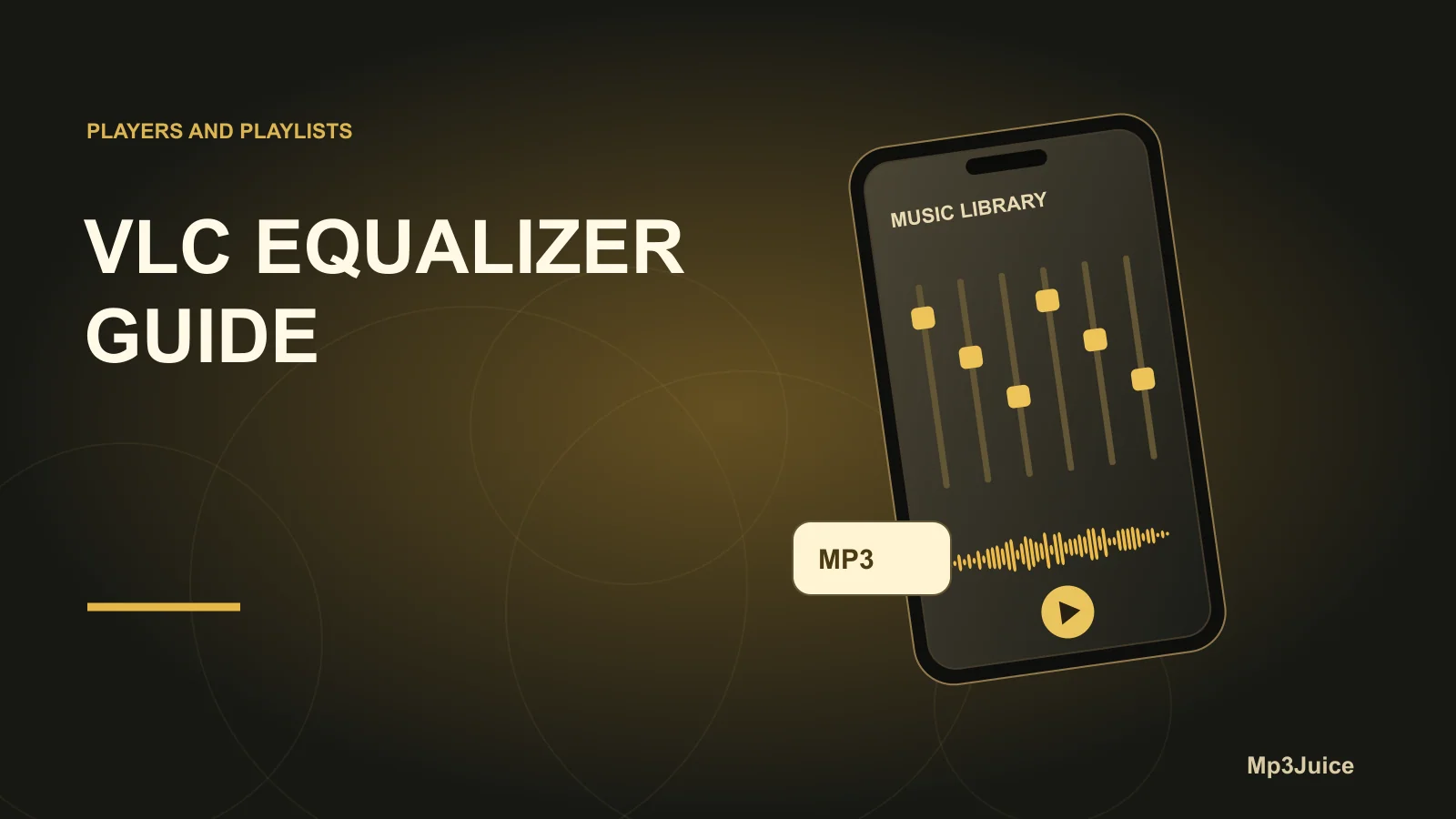
VLC’s 10-band graphical equalizer divides the audio spectrum into ten zones, each corresponding to a specific frequency range. The leftmost sliders influence bass (low-end frequencies), while the rightmost control treble (high-end). Raising a slider amplifies that frequency range; lowering it reduces its prominence. The effect applies only while you're listening in VLC during an active session. No part of your local music inventory is rewritten or re-encoded by these adjustments—when you close VLC or turn off the EQ, your music returns to its original mix.
To achieve the most natural sound, keep changes subtle. Excessive boosts or cuts, especially made rapidly, can introduce distortion or otherwise degrade playback quality. The equalizer in VLC3 is designed for gentle, corrective tweaks that suit your playback hardware or personal preferences.
Steps to enable and adjust the EQ on Windows
- Open your preferred music track or playlist in VLC Media Player (version 3.x is recommended).
- Navigate to Tools in the menu bar and select Effects and Filters.
- In the window that appears, click on the Audio Effects tab.
- Within Audio Effects, open the Equalizer sub-tab.
- Activate the equalizer by checking the Enable box. The sliders are now live for playback adjustment.
Each of the ten vertical sliders has a labeled center marking (0 dB) and a scale for boosting (above 0 dB) or cutting (below 0 dB) frequencies. Typically, shifts of ±1 to ±6 dB per band are sufficient for noticeable improvements without introducing significant artifacts.
Making modest practical changes
- Bass boost: For a warmer sound, raise the sliders on the far left (60 Hz or 170 Hz) by about 2–4 dB.
- Treble clarity: Bring out subtle details by increasing the rightmost sliders (10 kHz or 16 kHz) slightly.
- Vocal presence: Improve vocal clarity by adjusting the midrange bands (1 kHz or 3 kHz). A slight boost brings vocals forward; a slight cut can reduce harshness.
- Pursue gradual changes—test with sample tracks, listen for distortion, and reset a band if playback quality suffers.
Keep in mind that VLC’s equalizer is meant for playback enhancement rather than comprehensive audio repair. It cannot clean up noisy recordings or substitute for professional editing where permanent changes are needed.
Comparing EQ effects with bypass
Easily compare your EQ adjustments with the original track by toggling the Enable box off and on. When unchecked, you hear your music exactly as it is; when checked, your EQ changes are applied. This real-time comparison helps you decide if the alterations genuinely improve the experience or if further refinement is necessary before playing an entire playlist.
Example: using EQ in VLC3 for headphones
Consider Jamie, who listens to jazz in FLAC format on a laptop with budget headphones. The default sound is too thin and upright bass lacks presence, but raising headphone bass directly causes distortion. Instead, Jamie opens VLC’s equalizer and makes gentle boosts: +3 dB at 60 Hz, +2 dB at 170 Hz, and +1 dB at 10 kHz for added sparkle. By toggling the "Enable" box, Jamie compares the original and adjusted sound. Pleased with the more robust, balanced playback, Jamie leaves the EQ on during headphone use and disables it when switching to speakers for accurate reproduction.
Cautions and verification advice
- VLC’s EQ serves only to enhance live playback. It cannot fix recording flaws or permanently modify music files.
- For permanent audio edits or repairs, use a dedicated audio editor. For more playback control tips, refer to the VLC keyboard controls guide.
- Different output devices—such as headphones, speakers, and audio interfaces—respond uniquely to EQ changes. Retune settings as needed per device and confirm changes with multiple tracks before settling on a configuration for broader listening.
- The workflow and user interface vary by operating system. On macOS, access the equalizer via the dedicated Equalizer button rather than through the Windows menu structure. Controls may appear in different layouts or with minor differences depending on platform or VLC version.
Explore more VLC music features
Once you’ve customized your EQ, explore additional audio effects from the same VLC menu. Try the Compressor to improve perceived loudness or consistency, or use Stereo Widener for a broader soundstage on compatible tracks. When listening with mobile devices, you can also set a sleep timer for music with VLC for Android to manage playback duration.
By making careful, incremental changes and frequently checking your results, VLC’s equalizer becomes a powerful tool for personalizing music playback without risk to your files. Flexible and reversible, it’s well-suited for tailoring sound to any listening environment.